Copyright CharlesPrime 2022, All Rights Reserved.
How to define UTM Parameters in GA4 and Google Ads

What Are UTM Parameters?
UTM parameters are five tags that you can add to the end of specific URLs to track marketing or promotional efforts. When a URL with a UTM is visited, it allows analytics software like Google Analytics to track information, such as how visitors are finding a website and if they're interacting with any content associated with a campaign.This is a useful and encouraged practice to understand which marketing channel, campaigns and keywords are the most relevant for your business.
Example:
url without UTM parameters:
http://charlesprime.co/
url with UTM parameters:
http://charlesprime.co/?utm_source=google&utm_medium=organic&utm_campaign=UTM-blog-post
In the example above, the UTM parameters are the following:
utm_source=google: indicates that the user found the website through the google platform
utm_medium=organic: indicates that the medium was “organic” as opposed to “paid”
utm_campaign=UTM-blog-post: indicates that the “UTM-blog-post” is a campaign determined as part of the blogging strategy.
Although there are only 3 UTMs in the url above, there are up to 5 different fields for UTMs available in the URL.Since software platforms like Google Analytics cannot change past historical data, it is encouraged as a best practice to always label as many public URLs with UTMs to enhance data reporting.
5 UTM parameters recognized in Google Analytics
Campaign Source (utm_source): Parameter used to identify the source of your traffic. The source can be a website name, search engine, newsletter name, or social network.Example: utm_source=google, instagram, twitter, facebook, linkedin, yahoo, bing
Campaign Medium (utm_medium): Parameter used to classify the medium used to access the link. The source can be email, social, cost per click (cpc), or another method.Example: utm_medium=cpc, social, cpc, email, referral, paid social, banner
Campaign Name (utm_campaign): Parameter used to represent a campaign or promotion, which can be a product name, type of sale, contest name, date etc.Example: utm_campaign=summer-sale, UTM-blog-post, QR-code
Campaign Term (utm_term): Use this parameter for paid search campaigns to track relevant ad-based keywords. This helps you identify which keyword(s) resulted in a site visit.Example: utm_term=learn-investing, healthcare-near-me, business-advertising-030423
Campaign Content (utm_content): Use this parameter to determine what someone clicked on to get to your site when there are multiple links pointing to the same URL, such as in an email or on a landing page with multiple CTAs. This parameter is also used to distinguish between ads pointing to the same URL. It is commonly used for A/B testing and content-targeted ads.Example: utm_content=cta-bottom, footer, hero-button
GA4 Update
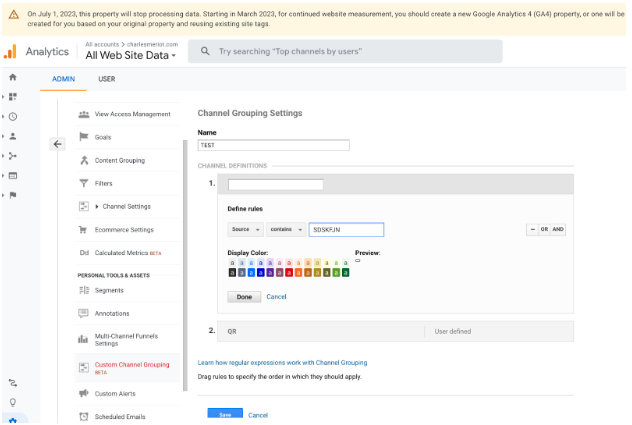
Previously, in Universal Analytics “Default Traffic Channels” could be created and customized. Users could input various “Channel Definitions” to determine the UTMs that would constitute the channels they were reporting on. For example, a user could define a new channel “Traffic A” if the UTM followed specific conditions of their choosing.
Since the GA4 update, Google has removed the customizable UTM features and enhanced the platform's ability to read UTM parameters links. As a result, the definitions for what constitutes specific UTM channels have become more strict.
Recognized Channels UTMS in GA4

If UTMs medium or source do not match the list - they will likely fall under “Unassigned” or “Other” in GA4.
How to Add UTM Parameters in Bulk to Google Ads
There are several ways to add UTMs in bulk to your Google Ad campaigns:
1. Bulk Upload
2. Google Ads Editor
3. Automatic UTMs
What is a Bulk Upload in Google Ads?
Bulk uploads is a quick and easy way to make multiple changes to a Google Ads account. A bulk upload consists of downloading a templated spreadsheet, creating and making edits to Google Ads campaigns on the spreadsheet, and then uploading the spreadsheet back into Google Ads to implement the changes. As a result, a user can benefit from the drag/drop/copy paste and quick formatting functions of Microsoft Excel or Numbers to create or make precise changes to campaigns in a format that is suitable for Google to understand.
A template spreadsheet for bulk upload is available on the Google Ads UI.
Automatic UTMs
(AKA Dynamic Parameters in Meta or Value Track Parameters in GAds)
1. Go to your Google Ads Home Page
2. In the menu bar, click on Settings > account settings
3. Open the “Tracking” field
4. Input the following url codes into the respective slots and click save
Tracking template:
{lpurl}?&utm_campaign={campaignid}&utm_content={adgroupid}&utm_term={keyword}
Final URL suffix:
utm_source=google&utm_medium=cpc
{lpurl} will use the URL that you have set for each individual ad or keyword and automatically add the Campaign ID, the Ad Group ID and the Keyword ID to your tracking.
You can add more/fewer or different UTM attributes based on the following list.
Those attributes can be found and read in Google Analytics if your website is set up correctly.
Need more help?
Oops! Something went wrong while submitting the form.